Admin Reference
This document has the reference for all of the views supported by tmtility. Each view has the name of the view, navigation buttons, and the release version at the top of the view. Admin Guide can be clicked to see the top level of this documentation.
View heading
Bluetooth Devices view
Navigation: Bluetooth > Bluetooth Devices
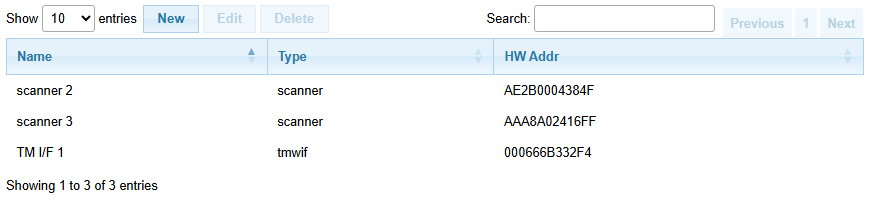
The Bluetooth Devices view is used to configure the Bluetooth devices that are supported by the system, and on which select control on the Results view the device is shown.
- Name:
name of Bluetooth device
- Type:
type of Bluetooth device, configured in Bluetooth Types view
- HW Addr:
MAC address of Bluetooth device
Bluetooth Devices view
Bluetooth Types view
Navigation: Bluetooth > Bluetooth Types
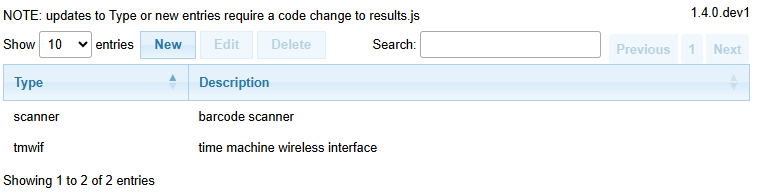
The Bluetooth Types view is used to configure the types of Bluetooth devices that are supported by the system for use in the Bluetooth Devices view
Note
Updates to Type or new entries require a code change to results.js
The Bluetooth Types view is used to configure the types of Bluetooth devices that are supported by the system.
- Type:
type of Bluetooth device, matches code in results.js
- Description:
description of Bluetooth device
Bluetooth Types view
Chip/Bib Map view
Navigation: Chips > Chip/Bib Map
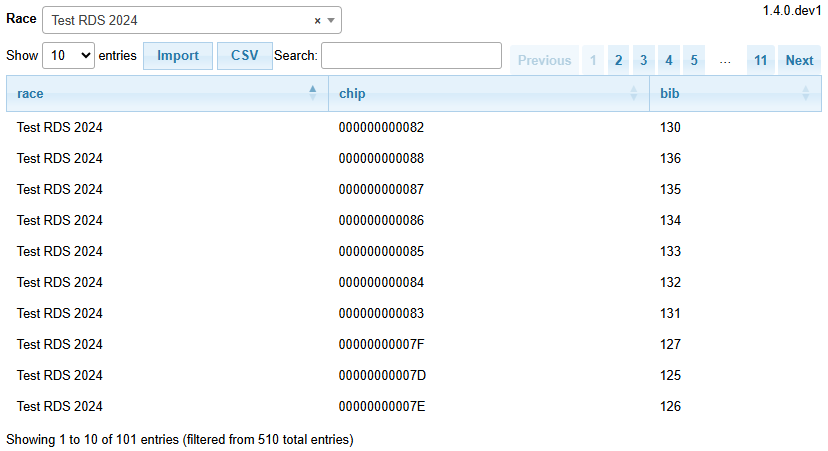
The Chip Reads view displays bib numbers based on this table. The csv file to import must contain columns chip and bib.
- race:
race/year the chip is associated with
- chip:
tag id for chip
- bib:
bib number associated with tag id
The view has the following controls:
- Import:
for a given race/year, import a file with chip to bib mapping
Note
RaceDay Scoring will accept up to two chips per bib
- CSV:
create a CSV file from the records which are shown only
The view has the following filters:
- Race:
race/year of interest
Chip/Bib Map view
Chip Reads view
Navigation: Chips > Chip Reads
Decode chip reads from Trident log file.
- race:
race/year the read is associated with
- Reader ID:
identifies reader
- Receiver ID:
corresponds to the receiver/mat that detected the tag. 1=RX1, 2=RX2 etc.
- Chip:
the unique serial number programmed into each tag
- Bib:
the bib number associated with the Chip, based on Chip/Bib Map view
- Counter:
the number of times this tag was read at this Receiver since the last tag timeout
- Date:
the date the tag was seen
- Time:
the time the tag was seen
- RSSI:
the signal level received from the tag
- Types:
FS=FirstSeen, LS=LastSeen, BS=BestSeen, RR=RawRecord
The view has the following controls:
- Import:
import a log file from Trident equipment with records of Tag Data Message Format
- CSV:
create a CSV file from the records which are shown only
The view has the following filters:
- Race:
race/year of interest
- Date:
date of interest
- Chips:
one or more chip tag ids of interest
- Bibs:
one or more bib numbers of interest
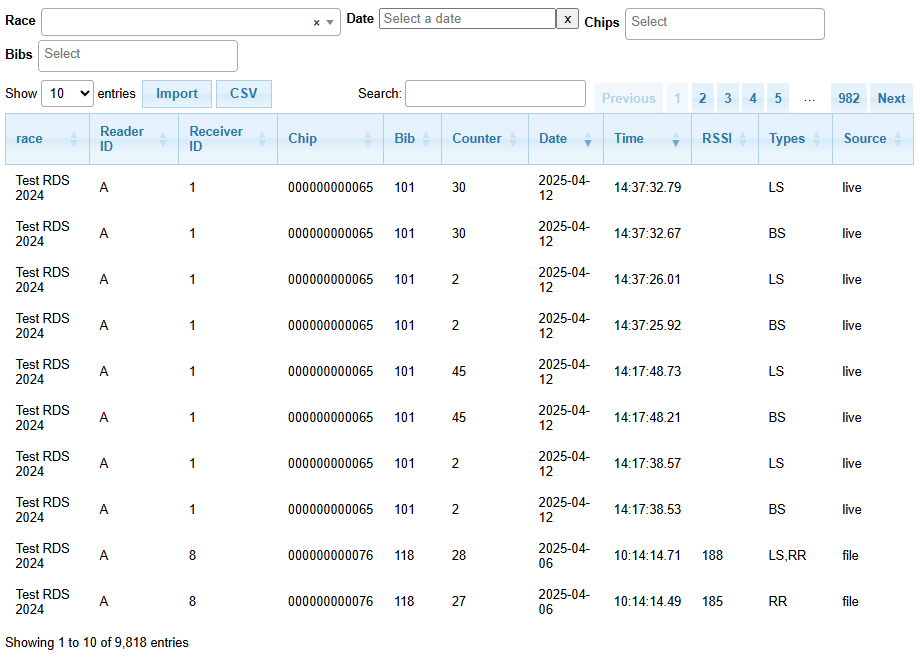
Chip Reads view
Races view
Results are collected by race. The Races view is used to configure the races in the system.
- Date:
date of race in ISO format (yyyy-mm-dd)
- Name:
name of race
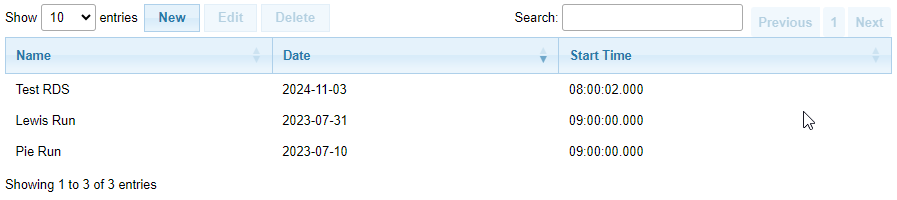
Races view
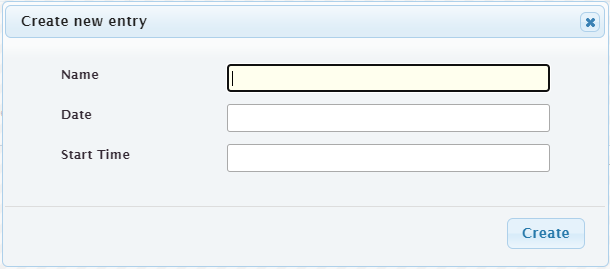
Create new race (click New)
Results view
The Results view is used to see the results for a particular Race as they come in from the Time Machine, and to adjust them as needed.
- Place:
current place of this result after edits, insertions, deletions
- TM Pos:
position (place) as known by the time machine. This can be compared against the paper tape
- Bib No:
bib number
- Time:
result time
The view has the following controls:
- Connect / Disconnect:
the button on the left of the controls is used to connect or disconnect from the time machine. If the button says “placeholder” for more than a second or two, there’s a problem communicating with the reader service
- Race:
choose the race previously defined at Races view
- Port:
the COM port which has been set up to communicate with the Time Machine. See Wireless Computer Interface User’s Guide for information on how to set up the communication.
- Scanner / Chip Reader Connect:
connect or disconnect the barcode scanner or chip reader. If the connection is lost, tmtility keeps trying to reconnect: the button turns orange and reads Stop Reconnecting, an orange banner appears above the controls, and a short beep sounds. While the banner shows, scans or chip reads are not being received. The banner clears once the device reconnects (a scanner may need to be switched back on, or its trigger pulled). Click Stop Reconnecting to stop trying. The button reads Stopping… until the current connection attempt ends, which can take up to about 20 seconds for the chip reader.
- Ignore repeat scans:
when checked, a bib scanned twice in a row is recorded only once, so an accidental double scan doesn’t add an extra scanned bib. Clear All checks this automatically. Uncheck it to test the data path by scanning the same bib more than once, and make sure it’s checked again before the race starts. The setting is saved separately for each race.
- Clear All:
removes all results and scanned bibs for the current race. Intended for use after pre-race data flow testing — once test results have been cleared from the Time Machine and RaceDay Scoring, click Clear All to clean up tmtility as well. A snapshot is saved automatically to allow the operation to be undone. Clear All also checks Ignore repeat scans.
- Undo Clear:
restores the results and scanned bibs removed by the most recent Clear All. This button appears only after Clear All has been used and disappears once the restore is complete.
To select a row, click on the row. Note when any row is selected, updates to the display are suspended and a warning is displayed. The row must be deselected by clicking on it again to resume results display. Edits to Bib No and Time can be done inline by clicking on the field to be updated. Clicking off the field after update, or hitting return submits the edit to the database.
Confirmed results have been sent to RaceDay Scoring via the csv file. The confirmed results are shown in green. To confirm a set of results, click on the last result to be confirmed (i.e., with the highest Place number), then click the Confirm button.
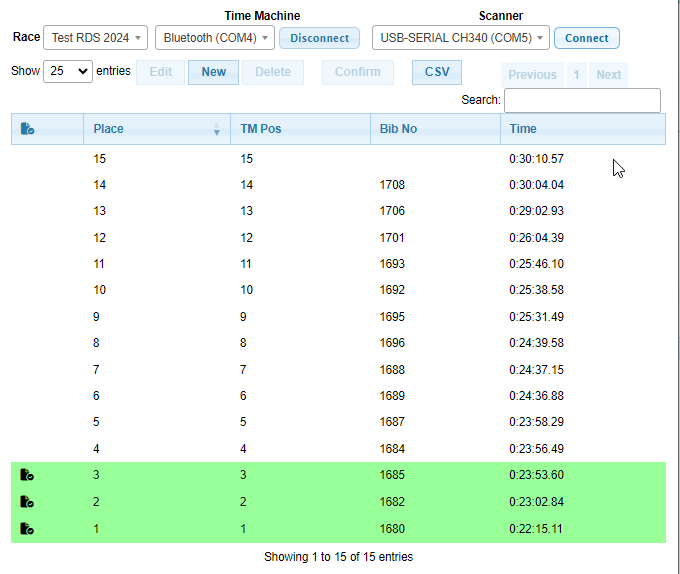
Results view
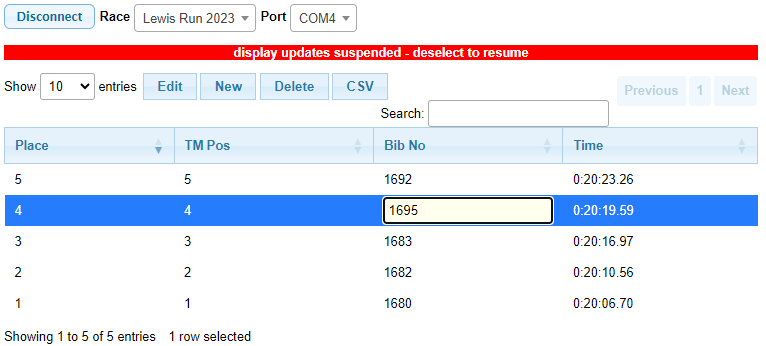
Inline edit (click on field)
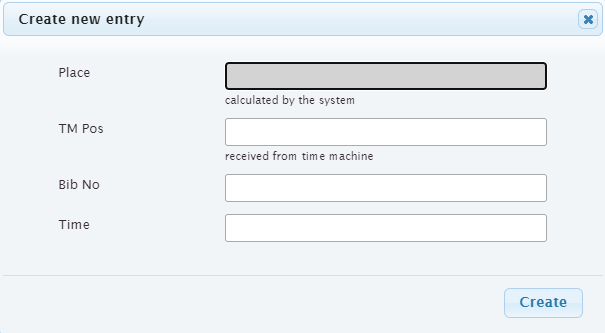
Create new result (click New)
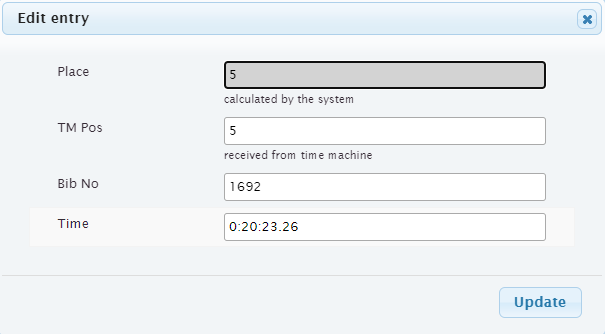
Full result edit (select row, click Edit)
Settings view
The Settings view is used to update individual settings required by the system.
- Setting:
the setting to be edited
- Value:
value of the setting
Defined Settings
- output-file:
the name of the csv file used to save result data. This is stored in the OUTPUT_DIR defined at installation or modified within the .env file.

Settings view